


Mojo: Reels and Video Captions
4.51.76K Reviews
App Specs
- Version
- 3.27.0
- Updated On
- License
- Free
- Downloads
- 10,000,000+
- Developer
- Dailymotion Inc
- Categories
- Photography
- Platform
- Android, iOS
Screenshots

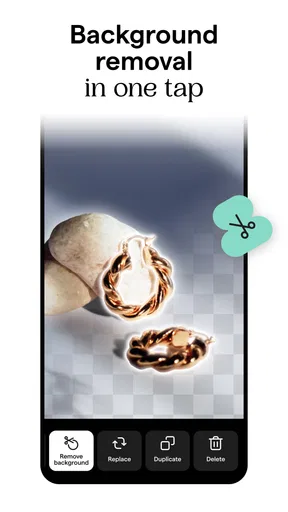
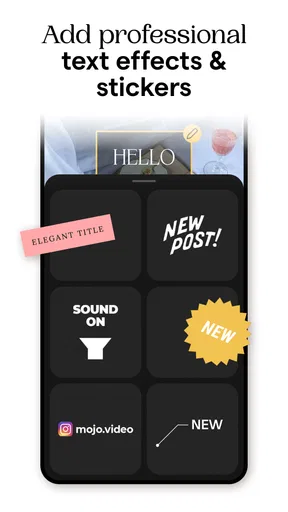
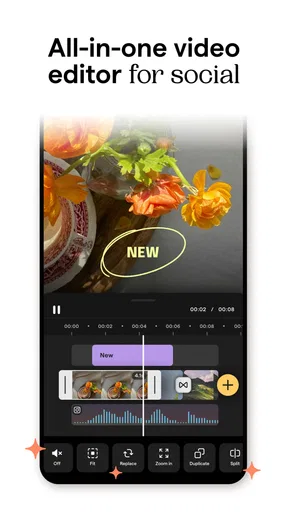
 Analysis by AppCompare
I reach for Mojo when I want a short social video to look deliberately designed without turning a quick post into a full editing project. Its strength is the bridge between a camera-roll clip and a polished story: animated text, layouts and captions can make ordinary footage feel more considered. It is not the tool I would choose for every kind of video, though. If precise timeline editing or detailed color work matters more than speed and presentation, a conventional editor is likely a better fit.
Where it fits in a creator’s routine
Mojo is a photography-category app from Dailymotion Inc, but in practice I think of it as a visual content maker for social posts rather than a camera app. The current version is 3.21.3, and its all-in-one approach brings video editing, auto subtitles, stories and collages into the same workflow. That combination is useful when I have a message to share and want to package it quickly, especially for vertical, short-form content.
A realistic example: I record a few clips while setting up a small weekend market stall, then use Mojo to turn them into a short sequence showing the finished display, a close-up of a product and a brief invitation to visit. I can add text to establish the context, use captions so the message still works with sound off, and keep the visual treatment consistent across the clips. For a one-off post, that is less fiddly than assembling separate tools for titles, subtitles and layouts.
Choosing the right starting point
The best time-saving move is to decide what the post needs to communicate before browsing designs. I start with the message and the footage, then choose a layout that supports them. If a template has several animated elements, I remove or simplify anything that competes with the subject. A restrained design often makes a small business announcement or personal update easier to read than a screen packed with effects.
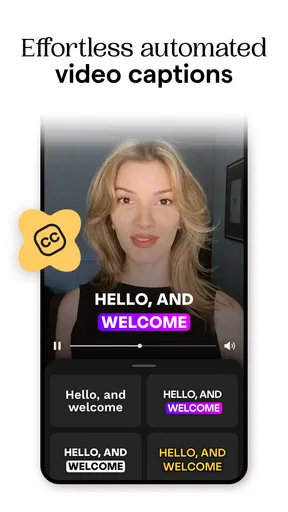
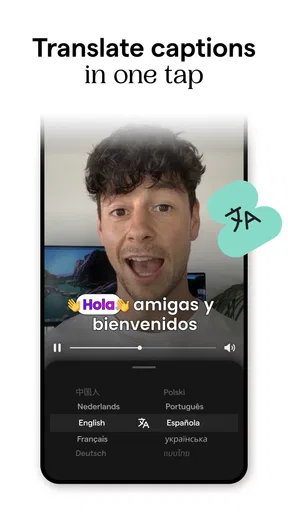
Auto subtitles are particularly helpful when someone is speaking directly to camera, but I would still review the text before publishing. Names, specialist terms and speech recorded in a busy place deserve a careful check; a caption that is almost right can change the meaning of a sentence. I also treat subtitles as part of the composition: leaving enough visual space for them and keeping important details away from the lower edge helps prevent the message from feeling cramped.
How it compares with other editing choices
Compared with a general-purpose mobile video editor, Mojo puts more emphasis on ready-made visual treatments and social-friendly presentation. That can save effort when I want animated typography or a story-like sequence without building every element from scratch. A traditional editor is usually the stronger choice for detailed trimming, layered sound, shot-by-shot adjustments or a longer project whose pacing needs close control. Mojo’s appeal is not that it replaces those tools; it is that it can make a simple social post feel finished with fewer decisions.
It also differs from creating everything directly inside a social platform. Working in a separate app gives me room to shape the piece before posting and reuse a finished concept elsewhere, while in-platform editors may be more convenient for a quick post that depends on a platform’s own effects or publishing flow. I would pick based on the job: Mojo for designed, reusable visual content; a platform editor for something spontaneous; and a fuller video editor when precision is the priority.
Worth Reading Before You Choose

Flipboard Shows What News Apps Must Do Beyond the Feed

Switching to Android Auto Means Rethinking Your Driving Routine

Google Calendar Makes a Crowded Week Easier to Manage

Ludo King Makes the Most of the Minutes Between Plans

Baby Panda World Brings Quick Play to Modern Phones, but Its Game Library Feels Busy

ESPN’s Live Game View Makes Following Close Games Easier
Who will get the most from it
I would recommend Mojo to small-business owners, event organizers, independent creators and anyone who regularly needs polished stories but does not want to learn a complex editing interface. It is also a sensible option for personal moments—a birthday greeting, a trip recap or a quick announcement—when a consistent visual style matters more than elaborate production. The free price makes it easy to try, while in-app purchases range from $9.99 to $39.99 per item, so I would explore the available workflow before deciding whether paid options are worthwhile for me.
On the other hand, I would skip it as my main editor if I needed meticulous control over every cut, a detailed audio mix or a long-form video workflow. Template-led design can speed up creation, but it can also make different posts feel alike if I rely on the same visual patterns. I try to change the opening shot, wording and rhythm rather than simply swapping a photo into a familiar layout. That small effort helps a post feel like mine instead of a template demo.
First Impressions: A Slick and Intuitive Interface
The first thing that caught my eye was Mojo's sleek design. It's super intuitive, which means you don’t need to be a tech wizard to get the hang of it. I found myself navigating through the various options with ease. The app is well-organized, with clear categories and a straightforward menu. The minimalistic design doesn’t overwhelm you with options, making it perfect for both beginners and seasoned creators.
Features That Stand Out
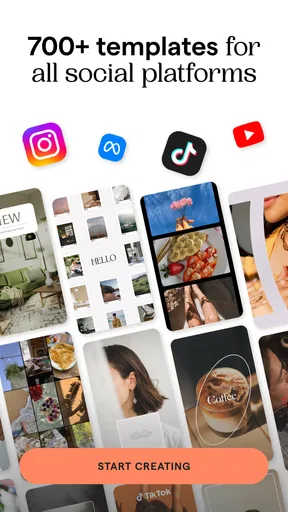
Alright, let's talk features. Mojo offers a plethora of templates, animations, and text styles. Whether you’re crafting a birthday shoutout or a promotional clip, there’s something for everyone. The animations are smooth, and the text styles are trendy yet classy. I particularly loved the way I could customize each template to fit my style, tweaking colors, fonts, and layouts to my liking.
Another cool feature is the music library. Mojo lets you add soundtracks to your creations, giving them a professional touch. And if you’ve got your own tunes, you can easily upload them too. I found this feature super handy for creating engaging content that stands out on my social media feed.
Integration with Social Media
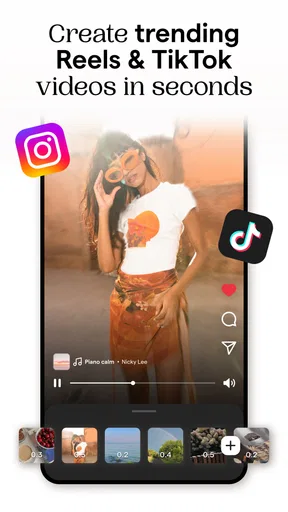
Sharing your creations is a breeze with Mojo. The app allows seamless integration with platforms like Instagram, Facebook, and TikTok. After crafting a masterpiece, it takes just a few taps to share it with your followers. The app optimizes your content for each platform, so you don’t have to worry about resolution issues or awkward cropping. I’ve noticed that my stories look crisp and professional, no matter where I post them.
Performance and Usability
Performance-wise, Mojo runs smoothly on both Android and iOS. I haven’t experienced any crashes or significant lags, which is a huge plus. The app’s usability is top-notch, with quick loading times and responsive controls. Even when editing larger video files, the app holds up well, maintaining quality and speed.
Room for Improvement?
While Mojo is fantastic, there’s always room for growth. I think expanding the template library with more niche-specific options would be a win. Also, offering more advanced editing features could attract a broader audience, including those who are looking for more professional tools. But these are minor tweaks in an otherwise solid app.
Getting a post ready without overworking it
For me, the practical benefit is not simply having many designs to browse; it is being able to settle on a visual direction and finish a small piece of content in one sitting. I usually select only a few clips, put the clearest moment first, and use text to explain why the viewer should keep watching. That opening matters more than decorative motion. If the main point appears late, an attractive template cannot rescue the post.
Collages are useful when a single image would leave too much unsaid—for example, showing several details from an event or comparing stages of a project. I would keep the number of elements modest and make sure each image contributes something different. A collage can feel busy on a phone screen, so I preview it at the size people are likely to see rather than judging it only while editing.
One trade-off with polished templates is that they can encourage me to make a post more elaborate than the subject needs. For a simple opening-hours change or a brief reminder, a clean title and one clear image may be enough. I save animation-heavy treatments for content where movement adds meaning, such as revealing a finished arrangement or guiding attention from one detail to another. This keeps the design from becoming noise.
What to check before sharing
Before I publish, I watch the whole piece once without stopping. I check that captions are readable against the footage, the music does not overpower speech, and the final frame does not cut off a key detail. I also look at the crop around faces, signs and product labels. Even when an app makes sharing straightforward, a quick review on the finished composition is worthwhile because a layout that looks balanced in the editor can feel crowded once all its elements are moving.
If I plan to reuse a video on more than one social platform, I make the central message understandable without relying on a platform-specific sticker or trend. I also keep important wording away from the edges, since different viewing interfaces can cover parts of a vertical video. This is a general publishing precaution rather than a promise that every platform will display the result identically; I still check the final post where it matters.
What established users should weigh
Mojo has a 4.5 average from around 241,000 ratings and more than 10 million installs, which suggests it has found a broad audience among people making social content. Those figures are useful context, but they do not tell me whether its design style suits my own work. I would judge it by making one real post from start to finish: can I find a suitable layout, adjust it without frustration, and export something I would actually share?
The app is free to install and rated for Everyone, so it can be approachable for a wide range of users. The main practical question is whether its ready-made approach saves enough time for the way I work. Someone who creates occasional stories may be happy with the free experience, while a frequent creator may want to compare the paid options with the time they expect to save. I would not pay just to unlock more choices if I already struggle to decide among the templates I use.
Version changes and the day-to-day experience
The release history includes a launch date of September 16, 2019, and the current version is 3.21.3. That tells me Mojo has continued through multiple versions, but a version number alone cannot show which individual tools changed or how much the editing experience has shifted. For someone already using it, the more useful test is whether the current workflow still supports the kinds of posts they make: opening a project, adjusting its design, checking captions and getting the finished piece ready to share.
Existing users may notice the value of any changes most in everyday friction rather than in a headline feature. If the app remains easy to navigate as its options evolve, it can stay useful for quick work; if the growing choice makes browsing feel slower, a saved personal routine—start with a format, edit the message, inspect subtitles, then review the final video—helps keep creation focused. I would watch for improvements that make those steps clearer, rather than assuming that a newer version automatically means a better result for every creator.
What I would keep an eye on
For future use, I would pay attention to how well the available designs serve specific needs rather than simply counting how many there are. More focused choices for different kinds of announcements could help a small business or community group get to a suitable look faster. I would also value editing controls that add precision without burying the simple workflow that makes the app approachable. Those are areas worth watching, not promises about what a later release will include.
My overall view is that Mojo is best when presentation is the hard part: it gives short videos a designed feel and brings several social-content tasks into one place. Its limitations are clearest when a project calls for deep editing control or a highly individual visual identity. I would keep it in my toolkit for stories, captions and compact promotional pieces, then switch to a conventional editor when the material itself needs more careful shaping.
Final Thoughts: A Must-Have for Content Creators
In conclusion, Mojo is a powerful tool for anyone looking to up their social media game. It’s user-friendly, packed with features, and integrates effortlessly with major platforms. Whether you’re a casual user or a content creator, this app is worth giving a whirl. I’ve thoroughly enjoyed using it, and it’s quickly become a staple in my app collection. So, why not give it a try and add a little magic to your stories?
Pros
- User-friendly interface enhances creativity.
- Wide range of templates for easy design.
- High-quality export options available.
- Regular updates with new features.
- Supports both video and photo editing.
Cons
- Limited free features without subscription.
- Occasional app crashes during editing.
- Some templates require in-app purchases.
- High-quality exports can be slow.
- No offline editing capabilities.
FAQs for Mojo: Reels and Video Captions
What features does Mojo offer for creating reels and video captions?
Mojo provides a wide array of features for creating stunning reels and video captions. It includes customizable templates, various text styles, animations, and music options. Users can easily edit videos with transitions and effects, making it ideal for social media content like Instagram stories. The intuitive interface ensures that even beginners can create professional-looking videos with ease.
Is Mojo suitable for both beginners and advanced users?
Yes, Mojo caters to both beginners and advanced users. The app offers an easy-to-use interface with drag-and-drop functionality, making it accessible for newcomers. At the same time, advanced users can take advantage of more detailed customization options to create unique and personalized content. The app’s versatility makes it suitable for a wide range of video editing needs.
What platforms is Mojo available on, and is it free to use?
Mojo is available on both Android and iOS platforms. While the app is free to download, it offers in-app purchases and subscriptions for access to premium features. These subscriptions provide additional templates, effects, and tools that enhance the user's creative capabilities. This pricing model allows users to try basic features for free before deciding on a purchase.
Can I use Mojo for professional video projects, or is it only for social media content?
While Mojo is primarily designed for creating social media content, its robust features can also be used for professional video projects. The high-quality templates and editing tools allow users to produce polished videos suitable for business presentations, marketing materials, and more. However, for extensive editing needs, more advanced software might be preferable.
How can Mojo improve my social media presence?
Mojo enhances social media presence by enabling users to create eye-catching and engaging video content. With its variety of templates, animations, and effects, users can produce videos that stand out in crowded feeds. Consistently posting high-quality content with Mojo can help increase engagement, attract followers, and build a strong online brand identity.


